Localized screenshots for every device, without redesigning a single one
Supporting a new market is rarely just a translated app description. Every screenshot slot each store requires has to exist again for every language, and every language has to exist again for every screen you want to show. A modest app with four languages, five feature screens and two device classes (phone and tablet) is forty finished images — before anything changes about the app itself.
Done by hand, that math is exactly why localized listings get skipped: a designer has to reopen the same composition forty times, swap a screen capture, retype a headline, and re-export at the right pixel size, hoping nothing drifts between the first version and the last. This guide walks through a different approach — build the design once as a reusable scene, then treat language and device as data you swap in, not art you redraw — using a real published app, the word-and-number puzzle app Crosswords & Puzzles, as the worked example, plus a Maestro-based pipeline that keeps the source screen captures from ever going stale.
Why localized screenshots convert — the data
This is not a cosmetic nicety. Screenshot localization is one of the highest-leverage ASO activities measured: AppTweak data shows full page localization — visuals included, not just translated captions — driving up to 38% more downloads in non-English markets, and industry analyses put the typical range at 15–40%, with some apps seeing gains as high as 200% in specific markets after localizing.
The size of the gain depends heavily on how far the localization actually goes. Translating captions word-for-word into Spanish has been measured at a 4–8% lift in Spanish-speaking markets, while genuinely localizing the imagery, on-screen text and cultural framing gets 18–26% — roughly triple. ZiMAD saw a 36% conversion increase localizing Magic Jigsaw Puzzles for Japan, where players responded to a visibly different composition style than the Western original. Even without touching a single language, adding clear on-screen captions to otherwise bare screenshots is separately measured at a 20–35% conversion lift. The two effects compound: caption text does the work, and it has to be in the shopper’s language to do it.
The trick: one scene, two things change
A screenshot composition is made of layers that mostly should not vary between languages or devices: the background, the lighting, the device color and material, the camera angle, and the position and size of the headline. What has to vary is almost always exactly two things — which screen capture is loaded onto the device, and what the headline text says.
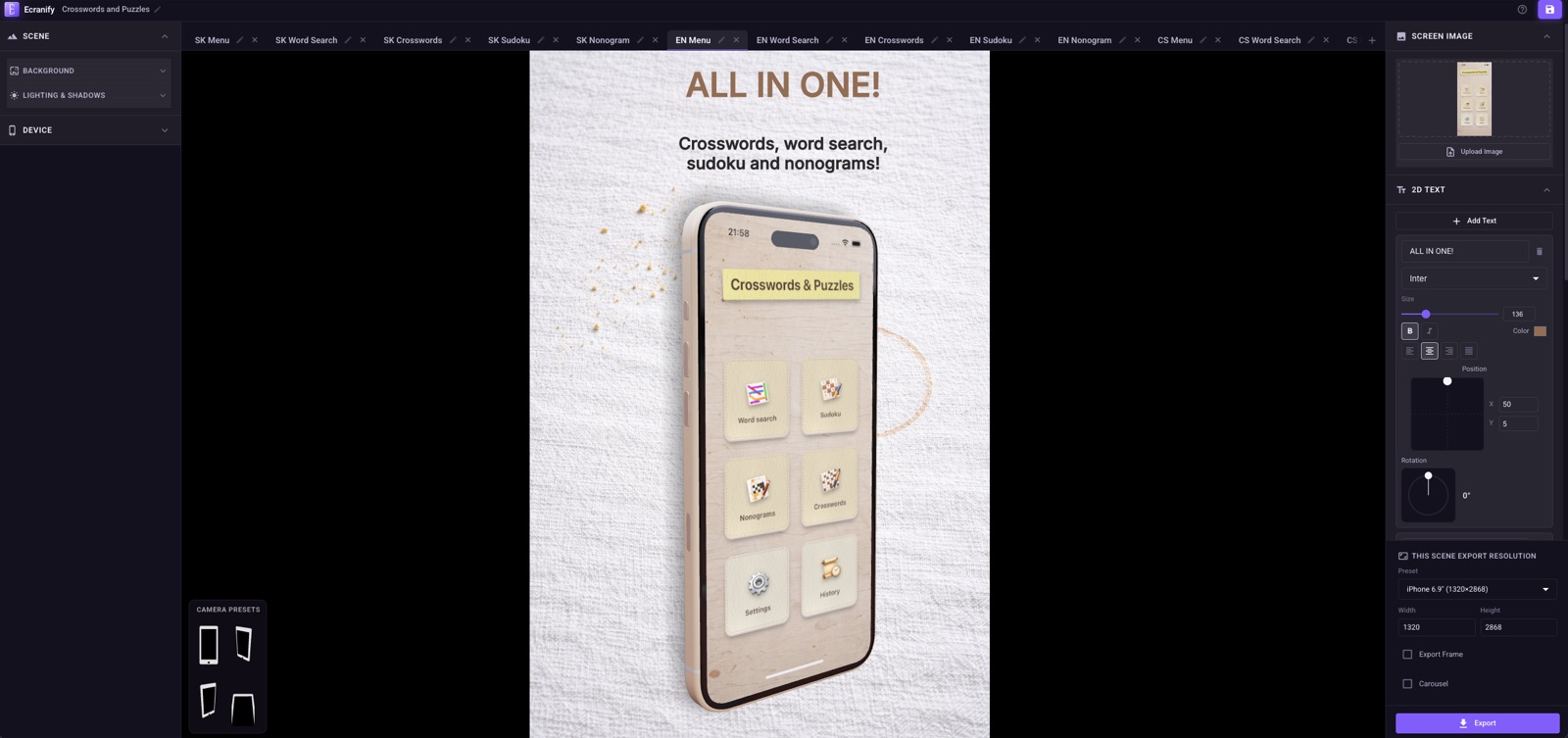
In Ecranify, a scene bundles all of it — background, device, camera, lighting, and every text and sprite layer — as one editable unit. Duplicating a finished scene tab and only touching the screen image and the headline string keeps everything else identical by construction. There is no risk of the second language subtly drifting in device angle or background tone from the first, because it is not a new composition — it is the same one with two swapped inputs. Template tools tackle the same problem from the other side: AppLaunchpad, for example, builds localization into its templates, as our AppLaunchpad alternative comparison describes.
Worked example: Crosswords & Puzzles, one template, four languages, two device classes
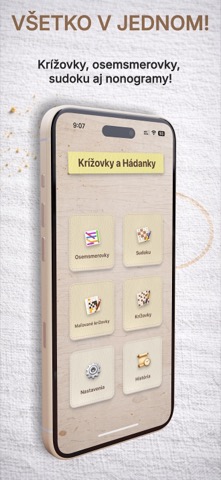
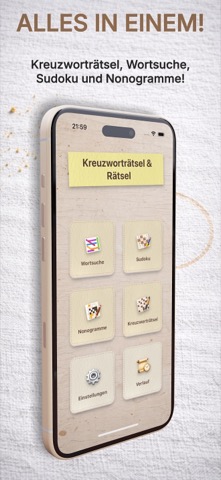
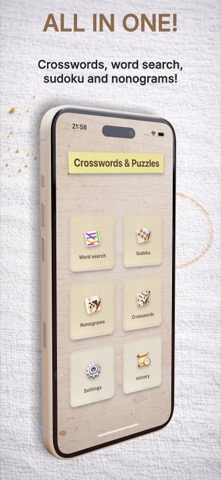
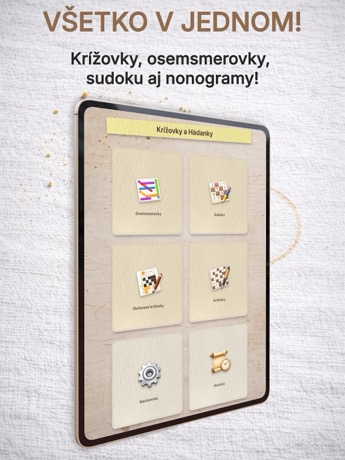
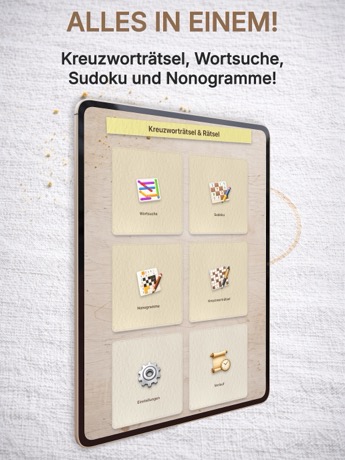
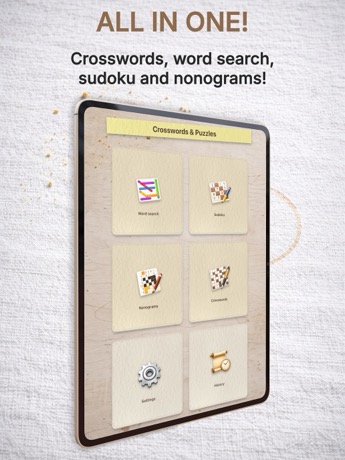
Crosswords & Puzzles ships in Slovak, Czech, English and German and needs App Store screenshots for both iPhone and iPad. Five screens tell the story: the app menu, word search, crosswords, sudoku and nonograms. Multiplied out — 4 languages × 5 screens × 2 device classes — that is 40 finished images per store update, and every one of them uses the same warm, linen-textured background and the same silver iPhone / iPad mockup so the whole gallery reads as one listing rather than forty separate exports.
Two of the five screens — sudoku and nonograms — carry no on-screen text at all, so they need only one asset per device size instead of one per language: a free four-way cut in the total. The menu, word search and crossword screens do carry text, so those are the ones actually duplicated per language, with only the headline and the captured screen swapped each time.
Same scene, translated text: what it looks like in practice
The screenshots below are different scene tabs in the same Ecranify project — same background photo, same device finish, same headline position, size and color. Between the three phone versions, the only edits are the screen capture loaded onto the device and the two lines of headline copy, translated per market rather than transliterated. The iPad versions underneath change one more thing — the device itself — while keeping the same background, lighting and text styling, so the phone and tablet listings read as one coherent set instead of two unrelated ones.
Make the device match the app, not a generic template
A device mockup is not neutral set dressing — its color and the background around it either reinforce the app or fight it. Crosswords & Puzzles has a handwritten, paper-and-pencil visual identity, so the scene uses a warm linen background with coffee-ring texture and a rose-gold/silver aluminum iPhone rather than the dark, glossy, tech-blue look that is the default reach for most screenshot tools. Getting that pairing right once, in the scene that becomes the template, is what makes forty exports look designed instead of assembled.
Because device color, background image and lighting all live on the same scene object as the text and screen capture, this decision only has to be made once per app — it then rides along automatically into every language and every device duplicate made from that scene.
The same reuse pattern for a second device class
Adding a device class works the same way as adding a language. Duplicating a finished iPhone scene into an iPad-sized export preset carries the background, device finish, lighting and text styling forward untouched, so “now on iPad too” is a resize and a fresh screen capture, not a redesign — the same iPad versions of the Crosswords & Puzzles menu shown further down were produced this way, one duplicated scene per language.
Automating the screen captures so the source images never go stale
The step that actually breaks this workflow in practice is not the design — it is keeping forty screen captures current every time the app’s UI changes. Recapturing that many screens by hand, in four languages, on two device classes, before every release, does not survive contact with a real release schedule. The fix is a small, deterministic capture pipeline built with Maestro, an open-source YAML-based mobile UI automation tool that drives a real app the same way a person would tap through it.
Two pieces make it reliable rather than fragile. First, a dedicated "screenshot mode" flag baked into a release build: when it is on, each screen serves a fixed, pre-filled state (a solved-looking board, deterministic content) instead of a randomly generated one, so a rerun produces byte-identical output and there is nothing to re-check by eye. Second, every tap in the automation targets a stable element ID rather than on-screen text — so the exact same flow drives the menu whether it is currently showing Slovak, Czech, English or German, and does not need one script per language.
| Step | What it does | Why it is built that way |
|---|---|---|
| Launch + screenshot mode | Launches the release build with a screenshot-mode flag baked in at build time | Every screen renders fixed, pre-filled content — no flaky random data to catch mid-shot |
| Capture language-neutral screens once | Navigates to screens with no on-screen text (e.g. a number puzzle) and shoots them a single time | A screen with nothing to translate does not need a copy per language |
| Loop a per-language sub-flow | Re-runs one flow file once per supported language, passing the language as a parameter | Navigation is by stable element ID, so one flow file drives every language |
| Set the language, then capture | Inside the loop: switch the in-app language in settings, then shoot the menu and each localized screen | The screenshot mode’s fixed board means the layout is identical run to run, only the strings change |
| Collect the output | A small script gathers the freshly written images from the test run into one predictable folder | Gives every downstream step (including the Ecranify scenes) a fixed, predictable filename to point at |
From a fresh set of PNGs to a re-exported, localized listing
Once the capture pipeline names its output consistently — one file per language and screen — updating the store listing stops being a design task and becomes a swap. Each Ecranify scene tab corresponds to one language-and-screen pair, so a refreshed capture drops straight into that scene’s screen-image slot; the headline text for a given language is typed once and does not need retyping on the next release unless the copy itself changes. Re-exporting the whole set then runs through the same per-scene export-resolution preset — iPhone 6.9″, iPad 13″, or a Google Play size — so a UI change that touches all forty images is a batch of drop-ins and one export pass, not forty redesigns.
A checklist for doing this on your own app
The pattern generalizes past this one example. Working through it in this order avoids most of the rework:
- Design one scene per feature screen first — background, device color and lighting you are happy to commit to — before touching languages at all.
- Give your app a deterministic "screenshot mode" so a recapture is byte-identical, not a fresh set of random content to re-check.
- Navigate to each screen by a stable element ID in your capture automation, not by the on-screen label, so one flow drives every language.
- Localize captions, do not just translate them — a benefit-led rewrite in the target language consistently outperforms a literal translation.
- Duplicate a finished scene for every new language or device class instead of rebuilding the composition — background, device and text styling should carry over untouched.
- Automate the capture step so a UI change refreshes the source images on demand, instead of a person re-shooting every locale by hand before each release.
Build these in Ecranify
Frequently asked questions
Related guides & comparisons
Turn one scene into every language and device you support
Build the composition once in Ecranify, then duplicate the scene per language and device class — background, lighting and device stay locked while you swap the capture and the copy. Free to start.